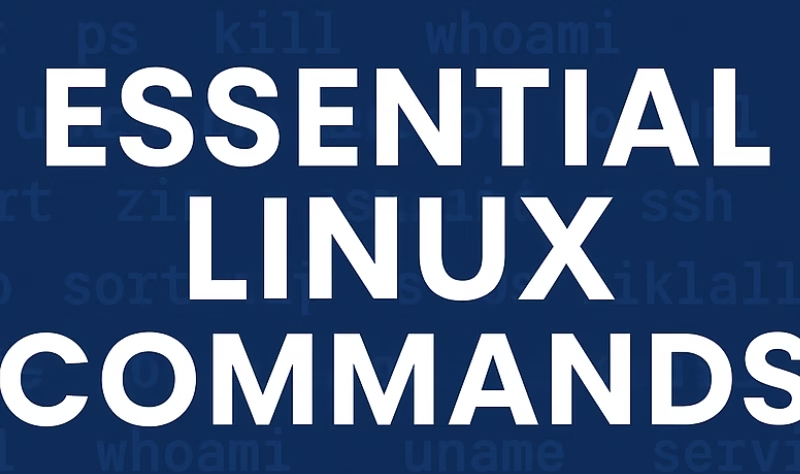
Linux is the backbone of modern computing systems, powering servers, cloud platforms, and data engineering pipelines across the world. Whether you’re a beginner or an experienced engineer, knowing how to interact with the Linux terminal is essential. This article provides a clear and practical explanation of the most commonly used Linux commands, along with when and why you would use them.
📁 Directory Navigation & File Management Commands
1. ls — List directory contents
Displays all files and folders within the current directory.
Useful for quickly understanding where you are and what the directory contains.
2. pwd — present working directory
Shows the full path of the directory you’re currently in.
3. cd — Change Directory
Allows you to move between folders.
Example: cd /home/user/documents
4. mkdir — Create a Directory
Used to create new folders.
Example: mkdir reports
5. mv — Move or Rename Files
Moves a file from one location to another or renames it.
Example: mv old.txt new.txt
6. cp — Copy Files or Directories
Works like mv, but duplicates the file instead of moving it.
Example: cp source.txt backup.txt
7. rm — Remove Files or Directories
Deletes files or folders.
Use with caution, especially with -r for recursive deletion.
Example: rm file.txt
8. touch — Create an Empty File
Often used to quickly generate new blank files.
Example: touch notes.txt
9. ln — Create Symbolic Links
Creates shortcuts to other files or directories—very useful in automation.
📄 Viewing & Reading Files
10. cat — Display File Content
Prints the entire content of a file to the terminal.
11. clear — Clear Terminal
Cleans your screen for a fresh workspace.
12. echo — Print Messages
Useful for testing or writing text into files.
Example: echo "Hello World"
13. less — Paginated File Viewer
Allows scrolling through long files page-by-page.
14. head — First Few Lines of a File
Ideal for previewing large datasets.
15. tail — Last Few Lines of a File
Commonly used with log files.
Example: tail -f application.log
📚 System Information & Manuals
16. man — Manual Pages
Opens the documentation for any Linux command.
17. uname — System Information
Displays OS and kernel details.
18. whoami — Active User
Shows the username currently logged in.
🔍 Search & Comparison Commands
19. grep — Search for Patterns
Searches for strings inside files or command output.
Example: grep "error" logfile.txt
20. diff — Compare Two Files
Shows detailed changes between two text files.
21. cmp — Check if Two Files Are Identical
Quick binary comparison tool.
22. sort — Sort File Contents
Sorts lines alphabetically or numerically.
📦 Archiving & File Compression
23. tar — Compress or Extract Archives
Handles .tar, .tar.gz, .tgz formats.
Example: tar -xvf archive.tar
24. zip — Create ZIP Files
Example: zip backup.zip *.txt
25. unzip — Extract ZIP Files
🌐 Networking & Downloads
26. ssh — Secure Shell Access
Allows remote login to another machine.
27. ifconfig — Network Interface Information
Shows IP addresses and network configurations.
28. wget — Download Files from Internet
Example: wget https://example.com/file.zip
🛠 Process & Service Management
29. service — Start/Stop Services
Used to control services like Apache, MySQL, etc.
30. ps — Show Active Processes
Lists currently running processes.
31. kill / killall — Terminate Processes
Stops processes by PID or name.
💽 Disk, Permissions & Ownership
32. df — Disk Usage Statistics
Displays filesystem storage information.
33. chmod — Change File Permissions
Controls read, write, and execute rights.
34. chown — Change Ownership
Assigns new owner or group to a file/folder.
📦 Package Management
Depending on the Linux distribution, package managers may vary:
Ubuntu/Debian: apt
Arch Linux: pacman
CentOS/RedHat: yum
Fedora: rpm
These tools install, upgrade, and manage system packages.
🔐 Privilege Escalation
35. sudo — Execute as Superuser
Gives temporary administrative rights.
Example: sudo apt update
Use responsibly—this command can modify critical system files.
Mastering Linux commands is a foundational skill for developers, ETL engineers, DevOps teams, and cloud professionals. These commands streamline workflows, automate tasks, troubleshoot issues, and give you greater control over your environment.
If you’re beginning your Linux journey, start with navigation and file management, and gradually expand into process control, networking, and system administration. The more comfortable you become with the terminal, the faster and more efficiently you can work.
Also Read: SQL Interview Question: GROUP BY vs. HAVING