
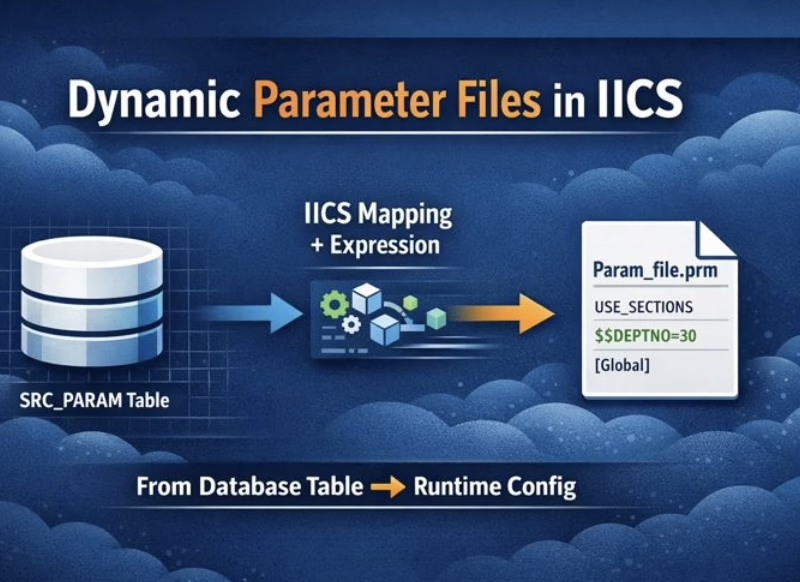
Parameter files play a critical role in Informatica Intelligent Cloud Services (IICS) by enabling dynamic values in mappings and tasks without changing code. While static parameter files are commonly used, enterprise ETL scenarios often require parameter files to be generated dynamically based on values stored in database tables.
This article explains a table-driven approach to dynamically generate an IICS parameter file using a mapping, making the solution scalable, automated, and environment-independent.
Why Generate Parameter Files Dynamically?
Dynamic parameter file generation is useful when:
- Parameters change frequently (department, schema, connection, file paths)
- Multiple mappings use different runtime configurations
- Environment-based values (DEV / QA / PROD) are stored centrally
- You want data-driven orchestration instead of manual file edits
1. Understanding the Desired Parameter File Structure
Before building the solution, it is important to clearly define how the final parameter file should look.
A typical IICS parameter file contains:
a. USE_SECTIONS Directive
This tells IICS that mapping-level or task-level parameters are present.
USE_SECTIONS
b. Mapping-Level Section
Defines parameters specific to a mapping or mapping task.
[Demo_Project].[Scenarios].[mt_m_src_stg_emp]
$$DEPTNO=30
c. Global Section
Defines parameters that can be reused across mappings, such as connections.
[Global]
$$CONN_SRC=SCOTT
$$CONN_TGT=SCOTT
The goal is to generate this exact structure dynamically from a table.
2. Prepare the Source Table
Create a table that stores each component of the parameter file in a structured format.
Sample Table Definition
CREATE TABLE SCOTT.SRC_PARAM
(
  USE_SECTIONS   VARCHAR2(20),
  PROJECT_NAME   VARCHAR2(200),
  FOLDER_NAME    VARCHAR2(200),
  TASK_NAME      VARCHAR2(200),
  DEPTNO         VARCHAR2(20),
  GLOBAL_SECTION VARCHAR2(20),
  CONN_SRC       VARCHAR2(200),
  CONN_TGT       VARCHAR2(200)
);
Sample Data
USE_SECTIONS
Demo_Project | Scenarios | mt_m_src_stg_emp | $$DEPTNO=30 | [Global] | $$CONN_SRC=SCOTT | $$CONN_TGT=SCOTT
This table becomes the single source of truth for parameter values.
3. Design the IICS Mapping
The mapping reads data from the table and converts it into a parameter file format.
a. Source Transformation
- Add a Source transformation
- Select the parameter table (e.g.,
SRC_PARAM) - Import all required columns
b. Expression Transformation (Key Step)
The Expression transformation is used to concatenate all fields into one output column, ensuring each parameter appears on a new line.
Steps:
- Add an Expression transformation
- Create a single output field, for example:
PARAM_FILE_CONTENT - Use
CHR(10)to introduce line breaks
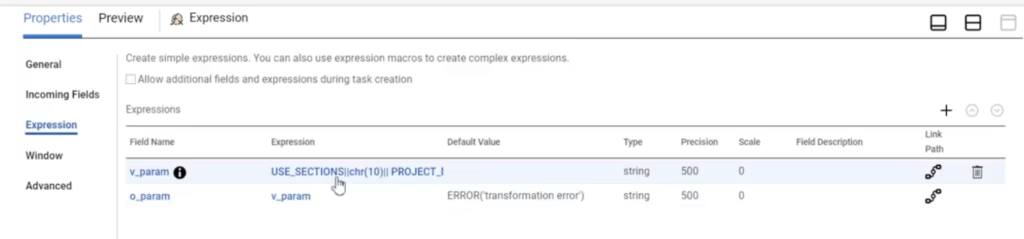
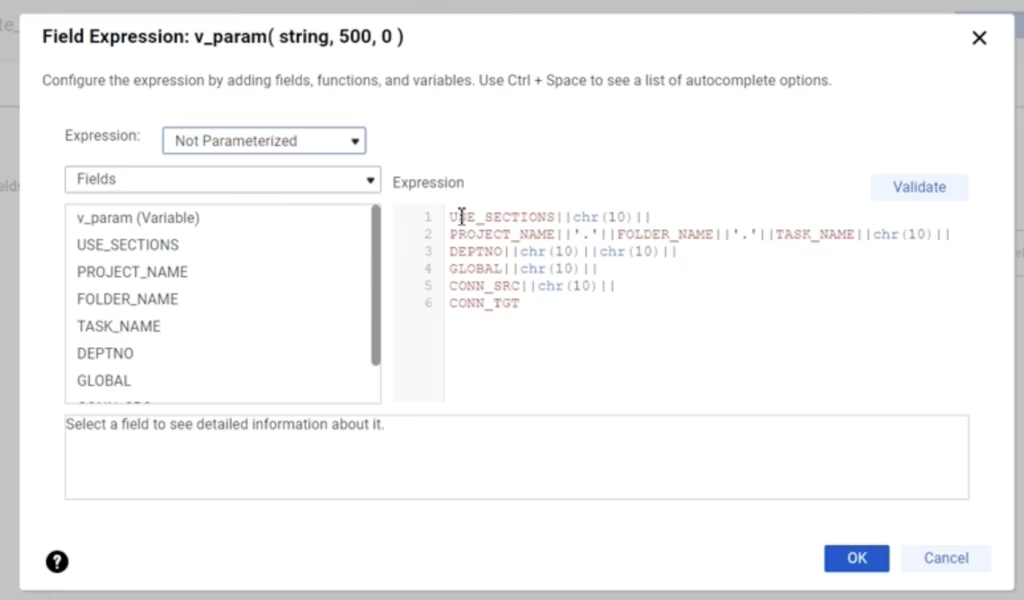
Sample Expression Logi
USE_SECTIONS || CHR(10) ||
'[' || PROJECT_NAME || '].[' || FOLDER_NAME || '].[' || TASK_NAME || ']' || CHR(10) ||
DEPTNO || CHR(10) || CHR(10) ||
GLOBAL_SECTION || CHR(10) ||
CONN_SRC || CHR(10) ||
CONN_TGT
Why CHR(10) Is Important
CHR(10)represents a newline character- Ensures each parameter appears on a separate line
- Without it, the file would be unreadable to IICS
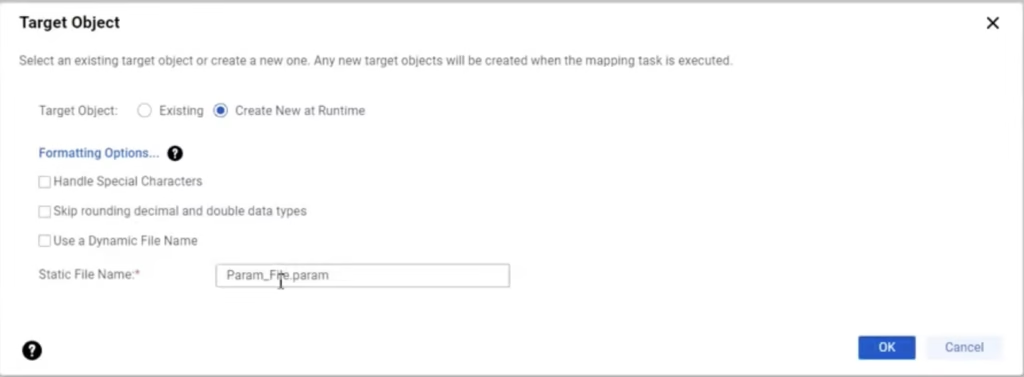
c. Target Transformation (File)
- Add a Target transformation
- Select File as the target type
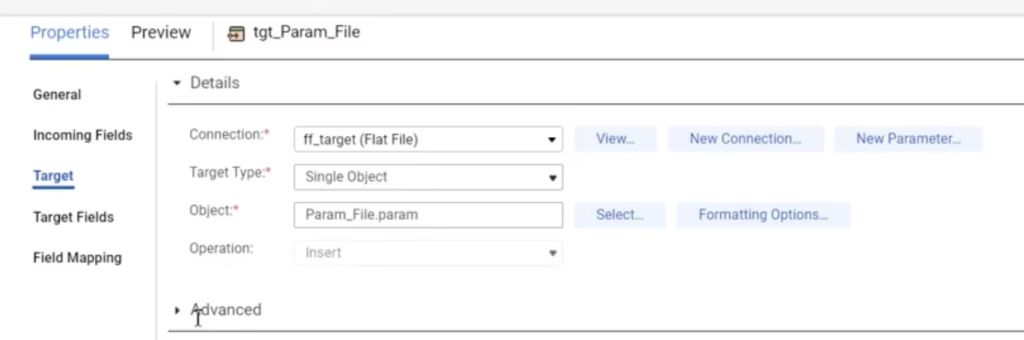
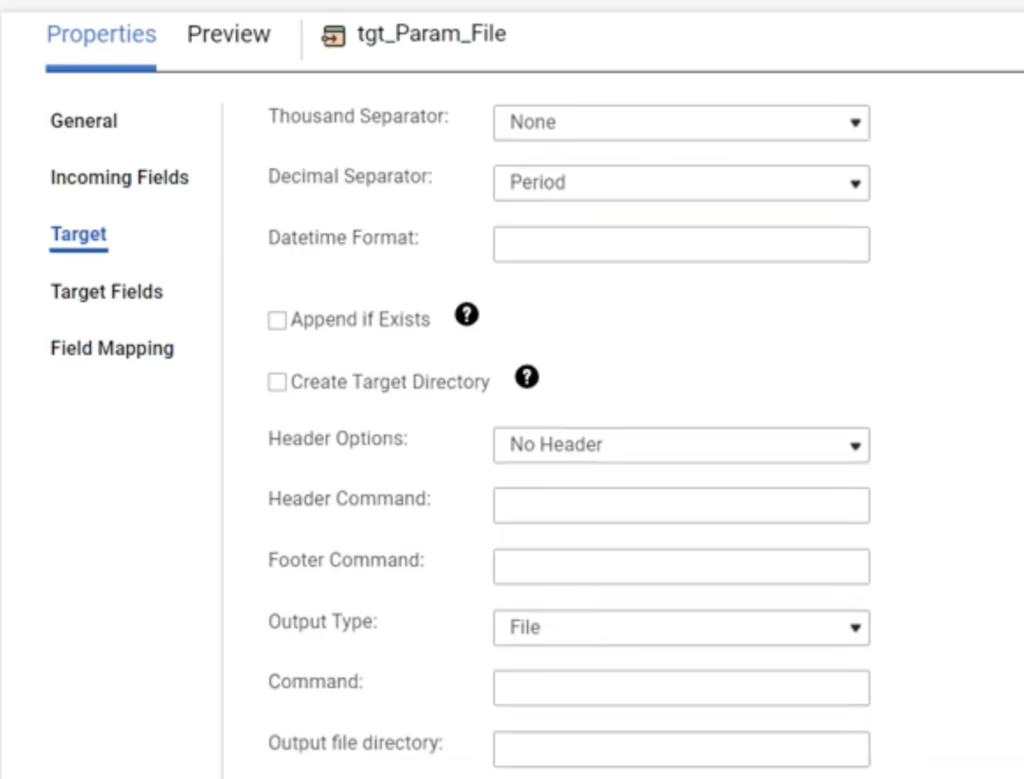
Target Configuration
- Connection: Secure Agent file system or cloud storage
- Object: Create New at Run Time
- File Name:
Param_file.prm - Header Option: No Header
Disabling the header is critical to prevent column names from appearing in the parameter file.
4. Create and Run the Mapping Task
- Save the mapping
- Create a Mapping Task
- Run the task
- Monitor execution from My Jobs
Ensure the task completes successfully.
5. Verify the Generated Parameter File
Navigate to the target directory and open the generated file.
Expected Output
USE_SECTIONS
[Demo_Project].[Scenarios].[mt_m_src_stg_emp]
$$DEPTNO=30

[Global]
$$CONN_SRC=SCOTT
$$CONN_TGT=SCOTT
If the format matches this structure, the parameter file is ready for use.
6. Using the Generated Parameter File
The generated .prm file can now be:
- Referenced in Mapping Tasks
- Used across multiple taskflows
- Regenerated dynamically for different environments or business units
Conclusion
Generating parameter files dynamically from a table in IICS is a robust, enterprise-ready design pattern. It enables configuration-driven ETL, simplifies environment promotion, and eliminates manual errors.
This approach is especially useful in cloud migration, large ETL programs, and CI/CD-enabled data pipelines.