
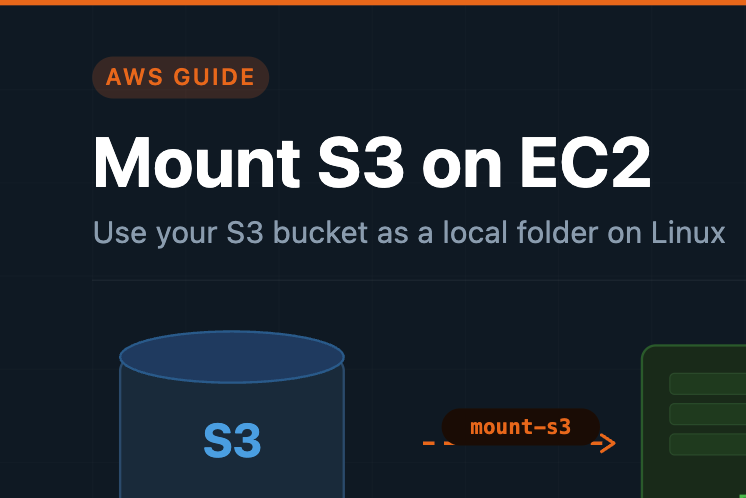
Amazon S3 & Mounting it on EC2
From what S3 actually is, to having your bucket live as a folder on your server.
What is Amazon S3?
Amazon Simple Storage Service — S3 — is AWS’s object storage platform, launched in 2006 as one of the very first AWS services. At its core, S3 gives you an infinitely scalable place to store files (called objects) inside named containers called buckets. You pay only for what you store and transfer — there’s no server to provision, no disk to size in advance.
Unlike a traditional hard drive or network file share, S3 stores everything as flat objects — each with a unique key (basically a filename), the data itself, and optional metadata. There’s no real folder hierarchy, though key names with slashes (like images/2024/photo.jpg) give you the illusion of one.
Unlimited scale
Store anything from a single file to exabytes — S3 scales automatically with no capacity planning.
Built-in durability
S3 is designed for 99.999999999% (11 nines) durability — your data is replicated across multiple facilities.
Pay-as-you-go
No upfront cost, no minimum commitment. You pay per GB stored and per GB transferred out.
Globally accessible
Access your files from anywhere via HTTPS — from EC2, Lambda, on-prem servers, or your laptop.
S3 is used for a huge range of things: hosting static websites, storing ML training datasets, archiving database backups, serving app-generated media files, and acting as the backbone for data lakes.
Why mount S3 on EC2?
Normally, to read or write a file in S3 from your EC2 instance you’d either use the AWS CLI (aws s3 cp ...) or write code using the S3 SDK. That works fine for one-off tasks, but gets messy when your existing application just wants to open a file path — like /data/input.csv.
Mounting solves this. Once your S3 bucket is mounted as a local directory, any tool — Python, shell scripts, ffmpeg, databases — can read and write to it using ordinary file operations, without knowing it’s actually talking to S3 under the hood.
No code changes
Your existing application reads files normally — no SDK, no special S3 paths needed.
Huge storage, tiny disk
Keep your EC2 root volume small and cheap. Store terabytes in S3 instead.
Shared across instances
Multiple EC2 instances can mount the same bucket — great for shared data pipelines.
How Mountpoint works
Mountpoint for Amazon S3 is an open-source file client built by AWS. It uses FUSE (Filesystem in Userspace) — a Linux kernel interface that lets a user-space program handle file system calls. When your app calls open("/mnt/s3/file.txt"), the kernel routes that call to the mount-s3 process, which translates it into S3 API calls (GetObject, PutObject, etc.) transparently.
Mountpoint is optimised for high-throughput sequential reads — ideal for machine learning workloads, media processing, and log analysis. It is not a general-purpose POSIX filesystem: random writes, file locking, and appending to existing files are not supported.
Prerequisites
- An EC2 instance running Linux (Amazon Linux, Ubuntu, Debian, CentOS or RHEL)
- An IAM role attached to the instance with S3 permissions (
s3:GetObject,s3:PutObject,s3:ListBucket) - An existing S3 bucket in the same AWS region as your EC2 instance
- SSH / terminal access to the instance
Step-by-step: mounting S3 on EC2
Install Mountpoint
Pick the tab that matches your Linux distribution and run the commands on your EC2 instance.
sudo dnf install mount-s3
wget https://s3.amazonaws.com/mountpoint-s3-release/latest/x86_64/mount-s3.rpm
sudo yum install ./mount-s3.rpm
wget https://s3.amazonaws.com/mountpoint-s3-release/latest/arm64/mount-s3.rpm
sudo yum install ./mount-s3.rpm
wget https://s3.amazonaws.com/mountpoint-s3-release/latest/x86_64/mount-s3.deb
sudo apt-get install ./mount-s3.deb
wget https://s3.amazonaws.com/mountpoint-s3-release/latest/arm64/mount-s3.deb
sudo apt-get install ./mount-s3.deb
mount-s3 --version
Create a local mount directory
This is an empty folder on your EC2 where the bucket contents will appear. You can name it anything.
mkdir ~/my-s3-mount
Common locations are /mnt/s3data or /data. The folder name does not need to match your bucket name.
Mount the S3 bucket
Replace your-bucket-name with your actual bucket name. Mountpoint uses your EC2 instance’s IAM role automatically — no credentials to paste.
mount-s3 your-bucket-name ~/my-s3-mount
ls ~/my-s3-mount
If you see a credentials or access denied error, check that your EC2 IAM role has s3:GetObject, s3:PutObject, and s3:ListBucket permissions on the bucket.
Read and write files
Your S3 bucket is now a regular folder — use any Linux tool or language to interact with it.
cp report.csv ~/my-s3-mount/
cat ~/my-s3-mount/report.csv
with open("/home/ec2-user/my-s3-mount/data.csv") as f:
print(f.read())Your app doesn’t need to know it’s talking to S3. Any tool that reads file paths just works.
Auto-mount on reboot (optional)
The mount is lost when the instance reboots. For a persistent setup, create a simple systemd service.
sudo nano /etc/systemd/system/mount-s3.service
[Unit]
Description=Mount S3 bucket via Mountpoint
After=network.target

[Service]
ExecStart=/usr/bin/mount-s3 your-bucket-name /mnt/s3data --foreground
Restart=on-failure

[Install]
WantedBy=multi-user.target
sudo systemctl daemon-reload
sudo systemctl enable mount-s3
sudo systemctl start mount-s3
After this, your S3 bucket will be available at /mnt/s3data every time the instance starts — no manual steps needed.