


Apple has rolled out the first beta of macOS 27 Golden Gate, and it brings more than 50 new features and tweaks across the system. A lot of the attention goes to how things look, but Apple didn’t stop there. Siri, Finder, Safari, Spotlight, Photos, Shortcuts, and several built-in apps all got real changes too.
This isn’t a ground-up redesign. Instead, Apple went back and fixed the small things people kept complaining about in the last version. The payoff is a Mac that feels cleaner, a little smarter, and easier to live with day to day.
Here’s a walk through what’s actually new.
A Fresh New Look
The first thing you’ll notice after the update is the new look of the system itself.
There’s a brand-new Golden Gate wallpaper that shifts automatically with Light and Dark Mode. In Light Mode you get soft browns and gray-purple tones. Switch to Dark Mode and it deepens into a richer purple. Oddly, the wallpaper doesn’t show the Golden Gate Bridge yet, but Apple tends to add more options as the beta cycle goes on, so that may change.

A More Polished Liquid Glass
Apple is pushing its Liquid Glass design even further into macOS. Things look more refined this time, with better transparency, improved reflections, sharper edges, and a stronger sense of depth.
Dock icons now have extra layers that make them look crisper and more detailed. Even tiny touches like tooltips and search boxes got the Liquid Glass treatment. And for the first time on a Mac, you can actually control how strong the effect is.
You Can Now Tune the Glass Effect
Head into Settings, then Appearance, and you’ll find a new Liquid Glass section. From there you can dial the effect up or down to match your taste, so you’re not stuck with one fixed style.
A Redesigned Battery Icon
The battery icon in the menu bar has been updated too. It now lines up with the battery indicators on iPhone and iPad, which gives it a cleaner, more modern feel.

HDR Makes Everything Pop
Apple is now using HDR rendering across macOS to add visual depth. Windows, icons, and buttons look a bit more realistic and stand out more clearly from the background, which makes them easier to pick out. The change is subtle, but you’ll catch it during normal use.
Better Windows All Around
Apple took several common gripes about the last release and dealt with them.
Window corners now use a consistent radius across both Apple’s own apps and third-party ones. Before, some apps looked off because their corners didn’t match the rest of the system. That’s fixed now. The corners are also a touch less rounded than before, which gives windows a cleaner, more grown-up look.
Sidebars got a full makeover as well. Instead of floating inside the window, they now stretch edge to edge. You’ll spot the difference right away in Finder, Mail, Photos, and Settings, and the whole thing feels more unified.
Toolbars were reworked too, with better spacing, clearer section titles, tidier button groups, and improved visibility. Put together, the interface just feels more organized.
Smarter Menu Bar
The menu bar picked up a few genuinely handy upgrades.
If yours gets crowded, macOS can now tuck away the extra icons on its own. When there isn’t enough room, two small arrows appear, and clicking them reveals the hidden icons only when you need them.
Control Center also gets a new option to hide suggested controls. If you’d rather skip the recommendations, you can turn them off in Settings and keep the Control Gallery simpler.
And if you connect over Ethernet, you’ll now see a dedicated Ethernet icon right in the menu bar, which makes checking your connection a little easier.

Finder Gets Smarter
Finder picked up one of the most useful upgrades in macOS 27.
Renaming files is far less of a chore now. Finder can look at a file’s contents, its current name, and the folder it lives in, then suggest a name that actually means something. So instead of saving an image as IMG_00982.webp, Finder might offer something like “Soccer Match,” “Mountain Landscape,” or “MacBook Laptop.” If you organize a lot of files, this can save real time.
You can switch the feature on or off in Finder Settings, and the suggestions show up when you’re renaming files, saving documents, or editing them.
Finder also gets a handful of smaller touches: new blue sidebar icons, smoother animations, a simplified View menu, and an updated iCloud toolbar icon. Minor stuff, but it all helps the app feel current.

Spotlight and Siri Finally Join Forces
One of the biggest changes in macOS 27 is that Spotlight Search and Siri are now one thing. Instead of two separate tools, they’ve been folded into a single smart search experience. Press Command + Space and you get a unified window where you can either search or ask.
It still does everything Spotlight always did, like launching apps, finding documents, and searching settings. But now it can also answer questions using Apple’s new AI-powered Siri. You can ask things like which macOS version you’re running, ask it to explain a document, search your messages, or find emails about a project, all from the same box.

Siri Now Understands Your Context
With your permission, Siri can dig into your own information, including Messages, Emails, Notes, Calendar, and Files. That opens the door to far more personal questions like “Did I mention this project before?”, “Who emailed me about this?”, or “What did my friend say about this file?” Instead of running a web search, Siri searches what’s actually yours.

Siri Can See Your Screen
There’s also a new feature called Screen Awareness, which lets Siri understand what’s on your display right now. So you can ask “What version is shown here?”, “Explain what’s on this page,” or “Find this product online,” and it works with what it sees. It makes the whole thing feel a lot more natural.
Siri Gets Its Own App
Apple has given Siri a dedicated app on macOS, and it now behaves much more like an AI chatbot than a simple voice assistant. It includes conversation history, multiple chats, a voice mode, file attachments, image uploads, search across conversations, the ability to pin important chats, and renaming. You can also choose how long your conversations stick around, with options for 30 days, one year, or forever.
Visual Intelligence Arrives
Siri now supports Visual Intelligence too. Right-click an image and ask Siri to identify it, and it can recognize clothing, find similar products, search online, identify objects, and even suggest places to buy. The results aren’t flawless, but for a first beta they’re surprisingly sharp.

Siri Can Handle Several Tasks at Once
The new Siri also supports in-app actions, and it can string several of them together instead of doing one at a time. For example, you could ask it to create a reminder, add a note, drop in a purchase link, and schedule a future reminder, all without opening each app yourself. It’s one of the bigger productivity wins in this release.

Spotlight Is Faster and Sharper
Spotlight itself got better under the hood. You should notice smarter suggestions, quicker indexing, more accurate top results, and easier shortcut discovery. Finding apps, files, settings, and shortcuts feels noticeably snappier than before.
Safari Gets More Organized
Safari rounds out the update with a few welcome changes.
You can now refresh a webpage with a simple swipe, just like on iPhone and iPad. It’s a small thing, but it makes browsing feel more natural, especially on a trackpad.
Managing a pile of open tabs is easier too. Safari can automatically group related tabs into categories, so if you’re researching Apple products, for instance, it might gather all those pages into one tidy section. You get a few choices here: full automatic organization, recommended organization, or none at all. The feature is still rough around the edges in Beta 1, but the potential is already clear.
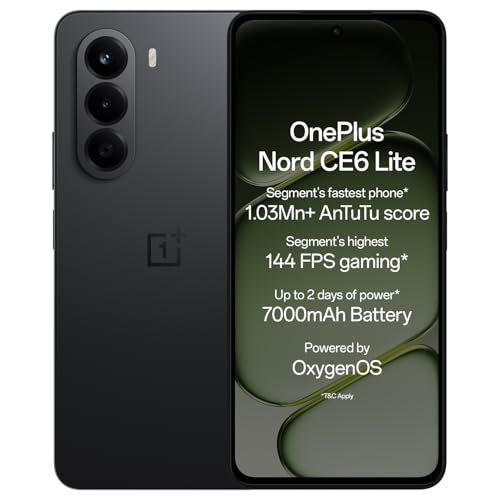
- Segment’s fastest phone with 1.03Mn+ AnTuTu score: MediaTek Dimensity 7400 Apex Processor with enhanced performance, an …
- Massive 7000mAh Battery: More Power, Less Charging. Power that lasts up to 2 days with a massive 7000mAh battery, backed…
- Segment’s highest FPS for gaming: Experience the segment’s highest FPS for gaming with up to 144 FPS support for ultra-s…

- ✔ Material :- Acrylic, ✔ Color :- Black, Shell Color , ✔ Design :- Unbreakable Hair Claw ✔ Pack Contains :- 2 Pcs. ✔ Sui…
- ✔ Hair Accessories Type :- Large Size Multi Colour Hair Claw | Hair Clips | Hair Clutcher | Women Hair Clips | Hair Pins…
- ✔ Banana clips, hair clips, hair clutchers, hair claw are made of plastic with braided edge, flat end and swivel end, op…


